Free flowchart maker online
Type the steps — the flowchart draws itself.
Lines at the left edge follow one another; indent a line to branch off the line above it. (Start) and (End) are rounded, a line ending in ? is a decision, /Text/ is input or output. Start a branch with yes: or no: (or any label:) to label its arrow. -> Name on a line of its own draws an arrow to that box. Tab indents, Shift+Tab outdents.
Flowchart
- Start (→ Enter email and password)
- Enter email and password (→ Details correct?)
- Details correct?
- Open the dashboard (→ End)
- Tries left?
- Show a warning (→ Enter email and password)
- Lock the account
- Send a reset email (→ End)
- End
Nothing leaves your device
This tool runs entirely in your browser. What you type, play or record here stays on your device: nothing is uploaded or saved on a server.
Example
Example: a shop’s returns process as a flowchart
A returns policy typed as an outline: two questions decide what happens, and all three outcomes end in the same place.
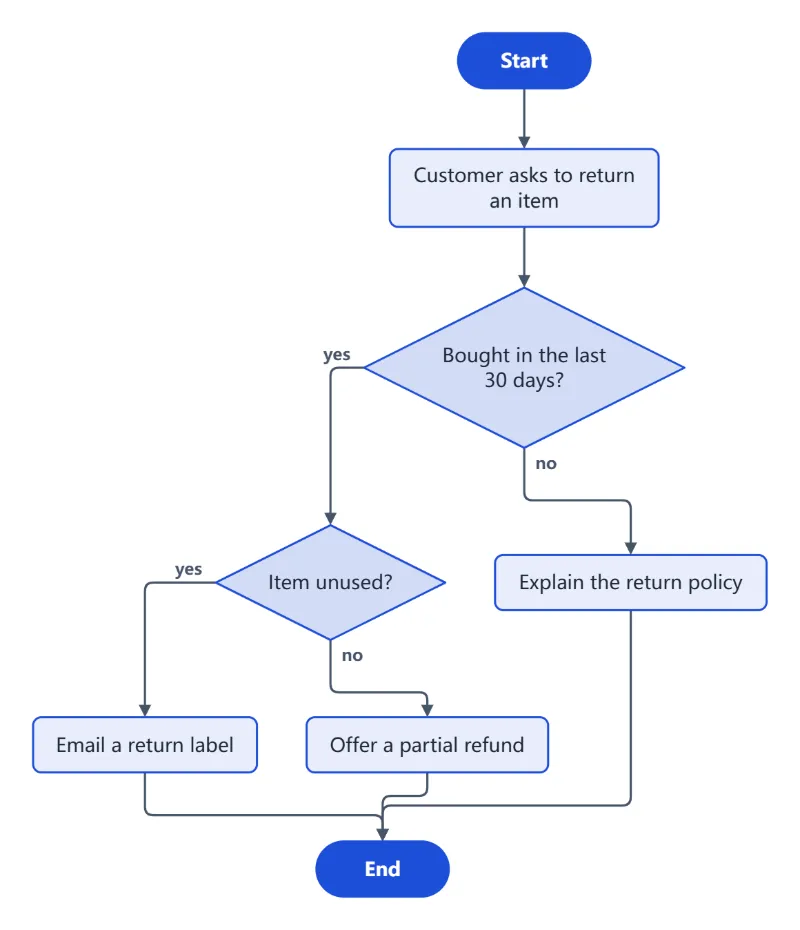
- At the left edge: (Start), then “Customer asks to return an item”, then “Bought in the last 30 days?”.
- Indented under the question: “yes: Item unused?”, and under that “yes: Email a return label” and “no: Offer a partial refund”.
- Back at the first indent: “no: Explain the return policy”. Then (End) at the left edge.
| Box | Shape |
|---|---|
| Start, End | Rounded |
| Customer asks to return an item | Step |
| Bought in the last 30 days? | Decision |
| Item unused? | Decision |
| Email a return label | Step |
| Offer a partial refund | Step |
| Explain the return policy | Step |
8 boxes and 9 arrows: the four yes/no arrows are labelled, and the three outcomes all lead to End without any arrow drawn by hand. Download it as PNG, SVG or PDF.
How it works
- Type one step per line. End a line with ? for a decision and indent its branches under it, starting them with yes: and no:.
- Use (Start) and (End) for rounded boxes, /Text/ for input or output, and -> Name on its own line for an arrow back to a step.
- Pick the direction and colours, then download PNG, SVG or PDF, or copy a link to share it.
Frequently asked questions
- Can I generate a flowchart from text?
- That is how it works: type or paste an outline, one step per line, and the flowchart is drawn from it — handy for turning notes or a written process into a diagram. The layout is automatic: boxes never overlap, arrows avoid them, and adding a step in the middle rearranges everything.
- How do I make a decision with two branches?
- End the line with a question mark — “Details correct?” — and indent the branches under it: “yes: Open the dashboard” and “no: Try again”. The next line back at the left edge is where the branches meet again.
- How do I draw a loop?
- On its own line in a branch, write -> and the name of the box to go back to, for example “-> Enter email and password”.
- Which shapes can I use?
- (Start) and (End) give rounded start and end boxes, a line ending in ? a decision diamond, /Text/ a slanted input or output box, and any other line a plain step.
- Can it go left to right, and in other colours?
- Yes — set Direction to Left to right for a wide chart, or keep Top to bottom. Colours offers Blue, Green, Warm, Colourful and Black and white, which prints well on any printer.
- Can I print it on A4?
- Yes: pick A4 or Letter under PDF paper and download the PDF. The diagram is scaled to fit inside the margins, and the page turns landscape when the chart is wider than tall.
- Is it free, and is my diagram uploaded?
- It is free — drawing, the share link and the PNG, SVG and PDF downloads, with no account and no watermark. Nothing is uploaded: it is drawn in your browser, the last outline is kept on this device, and “Copy share link” makes a link that carries the outline itself.