Chart maker
Type your numbers, pick a chart, download the picture.
| Label | Value | % |
|---|---|---|
| Apples | 12 | 33.3% |
| Bananas | 9 | 25.0% |
| Oranges | 7 | 19.5% |
| Grapes | 5 | 13.9% |
| Strawberries | 3 | 8.3% |
| Total | 36 | 100.0% |
Nothing leaves your device
This tool runs entirely in your browser. What you type, play or record here stays on your device: nothing is uploaded or saved on a server.
Example
A canned food drive by grade as a bar chart, with counts and percentages
A school counts the cans each grade brought in and wants a chart for the newsletter. The tally is copied from a spreadsheet, two columns headed Grade and Cans, and pasted into the paste box. Chart type Bar, Labels on the chart “Values and percentages”, title “Canned food drive: cans by grade”.
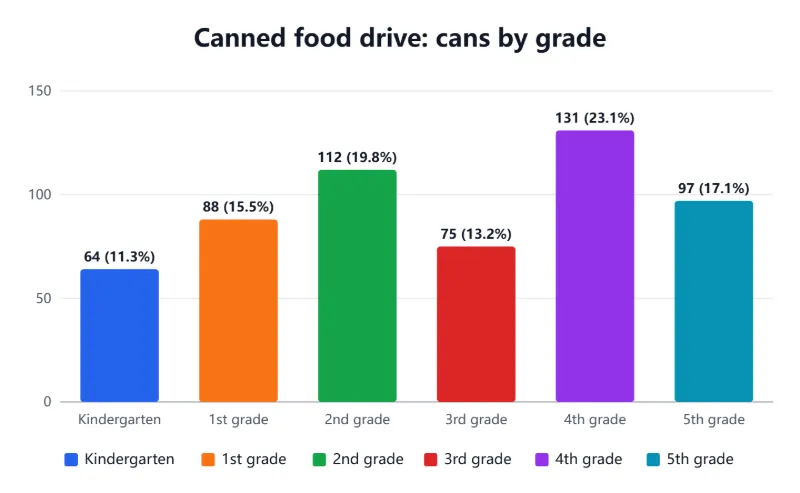
- The heading line Grade / Cans is left out and the six rows are read, Kindergarten 64 to 5th grade 97: 567 cans in all.
- Each bar is labelled with its count and its share, the count ÷ 567 to one decimal: 4th grade shows 131 (23.1%).
- The value axis starts at 0 and runs in steps of 50 to 150, just above the tallest bar.
- Download PNG gives a 1440 × 888 picture, the chart at twice its on-screen size, sharp in a newsletter; SVG stays sharp at any size.
| Grade | Cans | Label on the bar |
|---|---|---|
| Kindergarten | 64 | 64 (11.3%) |
| 1st grade | 88 | 88 (15.5%) |
| 2nd grade | 112 | 112 (19.8%) |
| 3rd grade | 75 | 75 (13.2%) |
| 4th grade | 131 | 131 (23.1%) |
| 5th grade | 97 | 97 (17.1%) |
| Total | 567 | 100.0% |
4th grade wins with 131 cans, 23.1% of the total, and the six shares add up to exactly 100.0%. The same table as a pie chart shows each grade’s slice of the whole; as a bar chart it is easier to see who brought the most.
How it works
- Type a label and a value on each row — or paste two columns straight from a spreadsheet.
- Choose the chart type, the colours and whether to show percentages, values or both; add a title.
- Download the chart as PNG for a document or slide, or as SVG to keep it sharp at any size.
Frequently asked questions
- Which chart should I use?
- A pie or doughnut shows parts of a whole (who voted for what). A bar chart compares amounts (sales by month). A line chart shows change over time.
- How are the percentages calculated?
- Each value divided by the total, rounded to one decimal so they always add up to exactly 100%.
- Can I paste from a spreadsheet?
- Yes — copy two columns (names and numbers) and paste them into the paste box; decimal commas like 3,5 work too.
- PNG or SVG?
- PNG works everywhere — documents, slides, messages. SVG stays sharp when enlarged and can be edited in drawing software.
- Can I show both the numbers and the percentages?
- Yes: set Labels on the chart to “Values and percentages” and each bar or slice reads like “131 (23.1%)”. “Values” shows the numbers alone, “Percentages” the shares alone, and “None” leaves the bars bare.
- Is my data uploaded?
- No. The chart is drawn in your browser; the table is kept on this device so it’s still there when you come back.
Made for a specific use
Related tools
☁ Word cloud generator Paste a text — the words you use most come out biggest. % Text tools Percentage and discount calculator Discounts, markups, shares and changes, typed the way you would say them. σ Text tools Mean, median and standard deviation calculator A list of numbers in, the statistics and the working out. ▦ Converters CSV to Excel A proper .xlsx from your CSV, written on your device.