Trim the empty border off images
The white or transparent space around a picture, cut away automatically, for a whole batch at once.
Drop files here
or click to choose from your deviceAccepted: JPG, JPEG, PNG, WEBP, AVIF, GIF, BMP, HEIC, HEIF
Up to 3 files per runUp to 20 MB per file5 runs per dayRemove limits with Pro✓ Works offline
Your files stay on your device
This tool runs entirely in your browser. Nothing is uploaded, nothing is stored, and you can even turn off your internet connection before you start.
Example
A listing photo of a red gift box, 1600 × 1200, trimmed to 760 × 700
A photo for a listing on a resale app: gift-box.jpg, 1600 × 1200 pixels, a red gift box in the middle of a very light grey backdrop (RGB 250), with a 2 × 2 pixel speck of dust near the top left. The settings stay as they come: Whatever colour the edges are, Tolerance Medium, Margin 0.
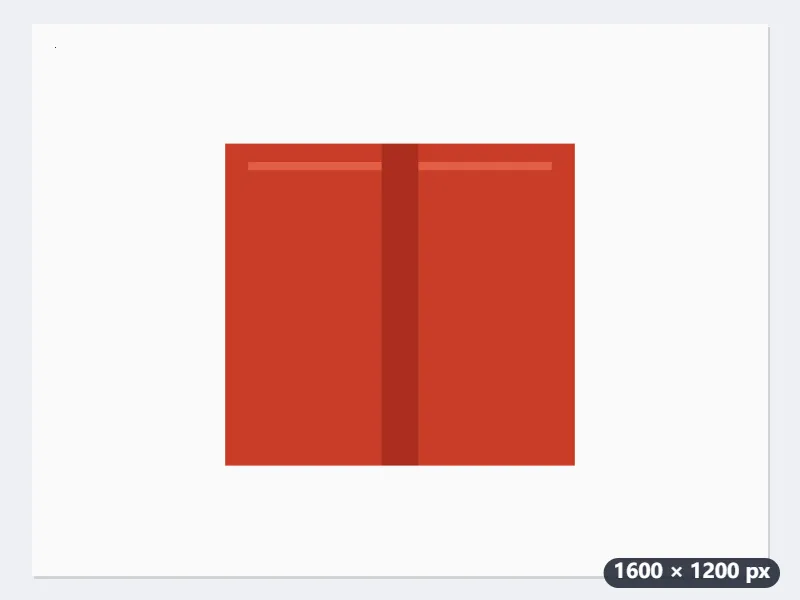

- The border colour is the one most pixels along the four edges share: the light grey. At Medium a pixel is border when no colour channel is more than 28 away from it (Low: 10, High: 60).
- A row of 1600 pixels counts as content once at least 3 of them differ. The speck, above the box, puts only 2 in any row, so it does not hold the top border in place.
- Press Trim: the result shows “1600×1200 → 760×700” and is saved as gift-box-trimmed.jpg.
| Margin to keep | Size after | Around the box |
|---|---|---|
| 0 px | 760 × 700 | nothing |
| 20 px | 800 × 740 | 20 px on every side |
| 50 px | 860 × 800 | 50 px on every side |
| 100 px | 960 × 900 | 100 px on every side |
From 1600 × 1200 to 760 × 700: just the box, with nothing cut out of it. For a little room around it in the listing, a margin of 20 gives 800 × 740.
How it works
- Drop the pictures. PNG, JPG, WebP and iPhone HEIC all work.
- Leave the border on Whatever colour the edges are, or say it is white or transparent.
- Raise the tolerance for scans or photos on off-white backgrounds; add a margin if you want some space kept around the subject.
- Press Trim and download. Each result shows its size before and after.
Frequently asked questions
- How does it know what the border is?
- It looks at every pixel along the four edges and takes the colour most of them share. A row or column counts as content once about one pixel in 500 differs from that colour (2 in a row of 1,200 pixels), so a speck of dust on a scan does not stop the trim.
- Will it cut into my picture?
- No. It only removes whole rows and columns that are border all the way across. If the picture has no border, it comes back unchanged.
- Can I keep a little space around the subject?
- Yes. Set a margin in pixels and that much of the original border is kept on every side.
- Does a transparent PNG stay transparent?
- Yes, as long as the format is PNG or WebP. JPEG has no transparency, so a JPEG result gets a white background.
- Why is some background still left around my product?
- Something along that edge differs from the border colour by more than the tolerance: a shadow under the object, a gradient on a paper backdrop, or JPEG noise on an off-white one. Set the tolerance to High, which allows 60 per colour channel instead of 28; a shadow darker than that counts as part of the picture and stays.
- Can I trim a whole batch of product photos?
- Yes: drop them together and each is measured on its own, so every result fits its own subject. The free plan takes 3 pictures of up to 20 MB per run and 5 runs a day; Pro removes these limits.
- Are the pictures uploaded?
- No. They are trimmed in your browser.