Crop an image
Drag a frame over the photo, see exactly what stays, and crop it without sending it anywhere.
Drop files here
or click to choose from your deviceAccepted: JPG, JPEG, PNG, WEBP, AVIF, GIF, BMP, HEIC, HEIF
One file per runUp to 20 MB per file5 runs per dayRemove limits with Pro✓ Works offline
Your files stay on your device
This tool runs entirely in your browser. Nothing is uploaded, nothing is stored, and you can even turn off your internet connection before you start.
Example
Example: an upright phone photo cropped to 4:5 for an Instagram portrait post
A phone photo held upright, 3024 × 4032 pixels: a golden dog (a simple drawn figure) sitting on a lawn in the lower half, a red ball by its paws near the bottom edge and a strip of plain sky at the top. The post should fill the feed in portrait 4:5.
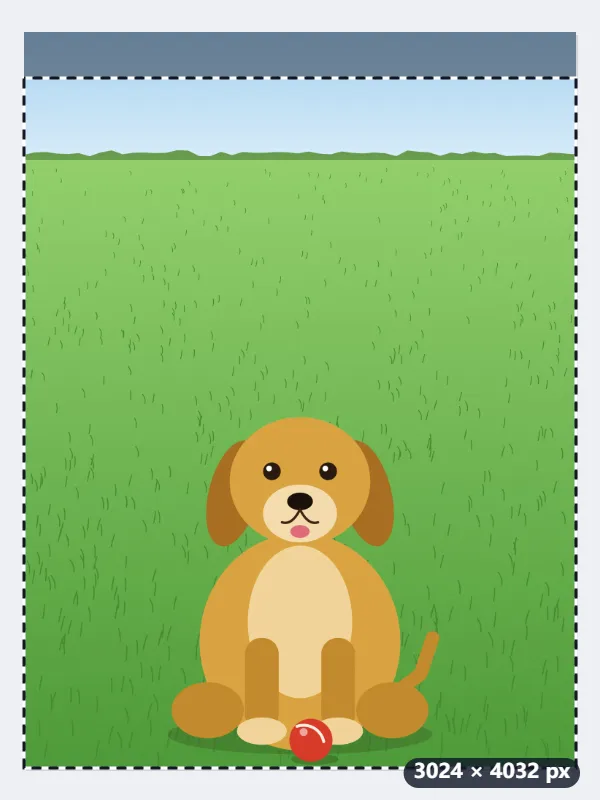
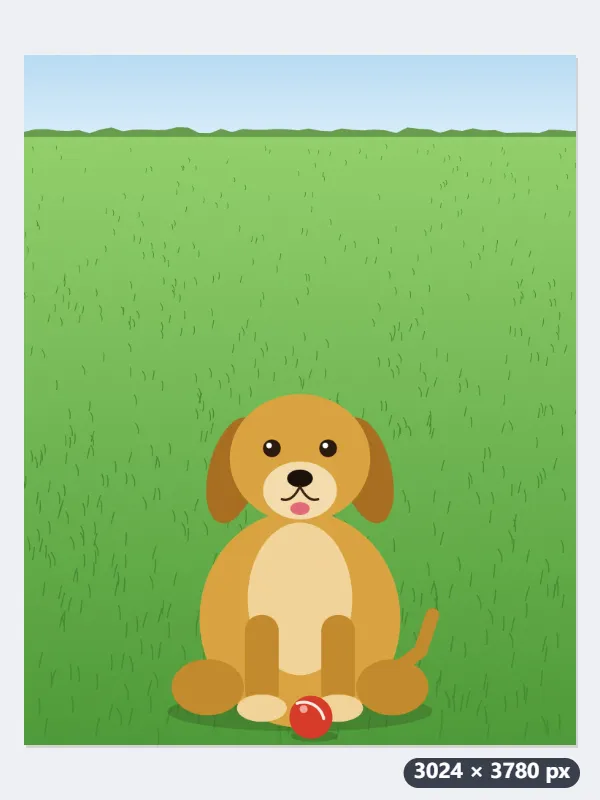
- Pick Portrait 4:5: the frame opens as large as the ratio allows, 3024 × 3780, centred, so 126 pixels would go from the top and 126 from the bottom.
- Drag the frame down to the bottom edge: it now starts at Y 252, keeps the ball and the paws, and drops 252 pixels of sky instead.
- Press Crop image: for IMG_2210.jpg the file is IMG_2210-3024x3780.jpg, every kept pixel as it was.
| Aspect ratio | Largest frame on this 3024 × 4032 photo |
|---|---|
| Free (starts at 80%) | 2419 × 3226 |
| Square (1:1) | 3024 × 3024 |
| Portrait 4:5 | 3024 × 3780 |
| Photo 3:2 | 3024 × 2016 |
| Classic 4:3 | 3024 × 2268 |
| Widescreen 16:9 | 3024 × 1701 |
| Vertical 9:16 | 2268 × 4032 |
A 3024 × 3780 JPG on the 4:5 ratio, the sky trimmed and the dog and ball kept. It is not scaled down: the app you post with resizes it, or the image resizer makes it 1080 × 1350 first.
How it works
- Drop one JPG, PNG, WebP, GIF or BMP image onto the box, or choose it from your device. It opens with a crop frame on top.
- Pick an aspect ratio if you need one: Square for profile pictures, 4:5 for Instagram portraits, 16:9 for thumbnails. Free lets the frame take any shape.
- Drag the frame over the part you want to keep and pull a corner or an edge to resize it. For exact pixels, type X, Y, width and height under the image.
- Press Crop image and download the result. The frame's size is shown in pixels, so you know the output size before you crop.
Frequently asked questions
- Is my image uploaded?
- No. The crop is computed on a canvas inside your browser. The file stays on your device and the tool works offline.
- Can I crop to an exact pixel size?
- Yes. Type the width and height under the image, and X and Y for the top-left corner of the frame. With a ratio selected, changing one side adjusts the other. Values larger than the image are limited to its edges.
- Can I move the frame with the keyboard?
- Yes. Click the frame, then use the arrow keys to move it; hold Shift for bigger steps. You can also type the position and size into the pixel fields.
- Does cropping lower the quality?
- The kept pixels are copied as they are. JPG output is re-encoded at high quality; PNG and WebP-lossless output is exact.
- Can I use a photo straight from my iPhone (HEIC)?
- Yes. Browsers cannot read HEIC on their own, so a small WebAssembly decoder loads the first time you bring one; after that it works offline like everything else here, and the photo still never leaves your device. The result is saved as JPG, because HEIC is not a format a browser can write.
- Why is my crop not 1080 × 1350?
- Cropping keeps the photo’s own pixels. Typing 1080 as the width makes the frame cover only 1,080 pixels of the photo, a small part of a phone picture. To get the whole picture at 1080 × 1350, crop at 4:5 with the frame as large as you need, then resize the result to 1080 wide with the image resizer.
- What are the free limits?
- The free plan allows 20 MB per file and 5 runs per day, with 3 files per run on tools that take several files. Pro removes these limits.