Crop an image into a circle
A round profile picture, transparent around the edge, without uploading the photo.
Drop files here
or click to choose from your deviceAccepted: JPG, JPEG, PNG, WEBP, AVIF, GIF, BMP, HEIC, HEIF
One file per runUp to 20 MB per file5 runs per dayRemove limits with Pro✓ Works offline
Your files stay on your device
This tool runs entirely in your browser. Nothing is uploaded, nothing is stored, and you can even turn off your internet connection before you start.
Example
Example: a round 1200-pixel headshot for a webinar speaker slide
A phone photo, 4032 × 3024 pixels, of a person (a simple drawn figure with dark hair and a teal top) standing a little left of centre in front of a cream wall, with a window and a potted plant. The slide template has a round space for each speaker’s photo.
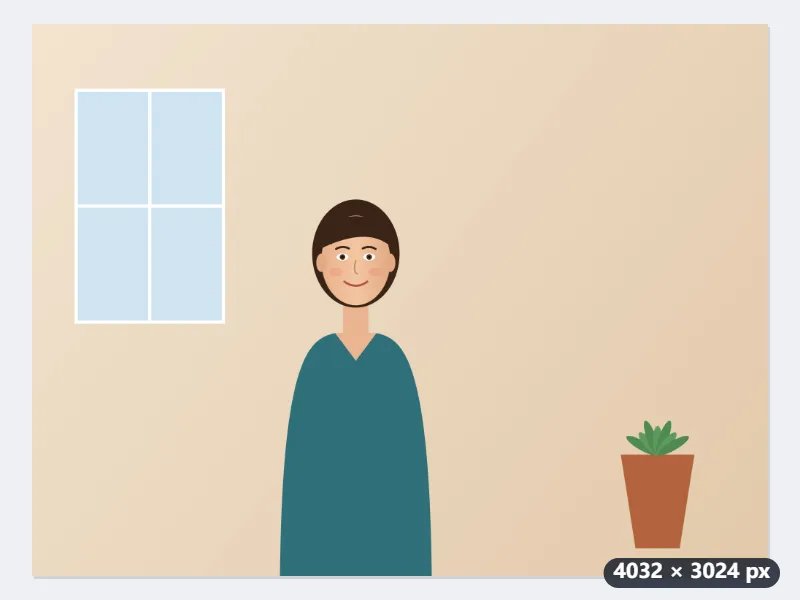
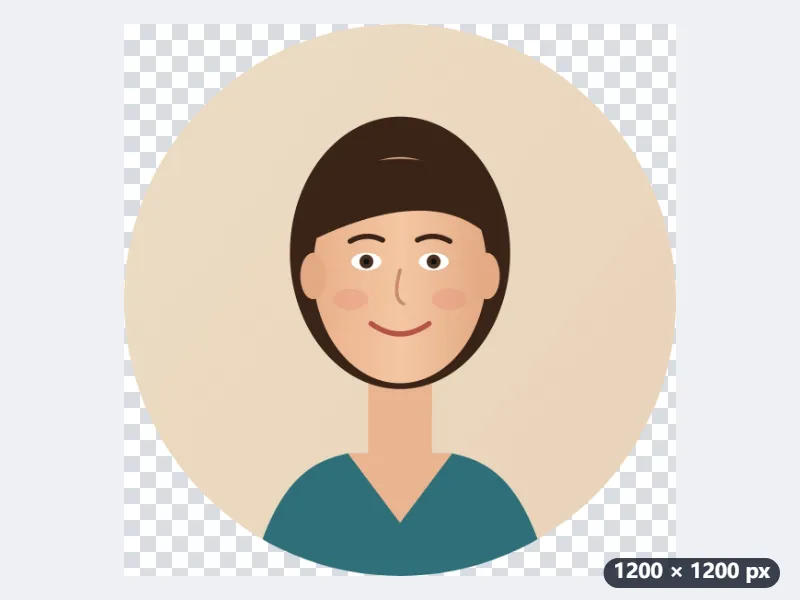
- Drop the photo: the circle opens as large as it can, 3024 pixels across, in the middle.
- Type 1200 as the width: the height follows and it stays a circle. Drag it over the face and shoulders.
- Select Crop to circle: headshot.jpg comes back as headshot-1200x1200.png.
A 1200 × 1200 PNG: the photo inside the circle, the four corners, about 21.5% of the square, transparent. Placed on the slide’s coloured background it reads as round, with no white corners.
How it works
- Drop a JPG, PNG, WebP, GIF or BMP image onto the box. It opens with a round frame on top.
- Drag the circle over the part you want, and pull its edge to make it bigger or smaller.
- Select Crop to circle and download the PNG. Outside the circle it is transparent.
Frequently asked questions
- Why is the result a PNG even when I started with a JPG?
- Because JPG cannot be transparent. The corners outside the circle would come out white or black, which shows as a square on any coloured background. A WebP stays a WebP, which is transparent too.
- Can I make an oval instead of a circle?
- Yes. Switch the aspect ratio to Free or to another ratio, and the round frame becomes an ellipse of that shape.
- Do I need a circle for a profile picture?
- Usually not: most sites and apps take a square picture and show it in a circle themselves. A round file helps where the picture is shown as it is — a slide, a document, a sticker, a website you build — so the corners do not show.
- Can I get exactly 400 × 400 pixels?
- Typing 400 makes the circle cover 400 pixels of the photo, a small part of a phone picture. Set the circle to frame the face at whatever size that takes, crop, then shrink the PNG to 400 × 400 with the image resizer; the corners stay transparent.
- Why is the PNG larger than my JPG?
- PNG is lossless, and a photo stored without loss takes more room than a JPG. The transparent corners need PNG (a WebP photo stays WebP, which is transparent too). For a smaller file, resize the result to the size you will actually show it at.
- Is my photo uploaded?
- No. The circle is cut on a canvas inside your browser, and the photo stays on your device.