Make an image square without cropping
The whole picture in a square, with space added around it instead of anything cut off.
Drop files here
or click to choose from your deviceAccepted: JPG, JPEG, PNG, WEBP, AVIF, GIF, BMP, HEIC, HEIF
Up to 3 files per runUp to 20 MB per file5 runs per dayRemove limits with Pro✓ Works offline
Your files stay on your device
This tool runs entirely in your browser. Nothing is uploaded, nothing is stored, and you can even turn off your internet connection before you start.
Example
Example: a 16:9 sunset picture made square with a blurred background
The picture: 1600 × 900 px (16:9), an orange sunset over a dark-blue sea with a small sailboat in the middle. It should go into a square post with nothing cut off. Settings: Square (1:1), Blurred copy of the picture, Keep original format.
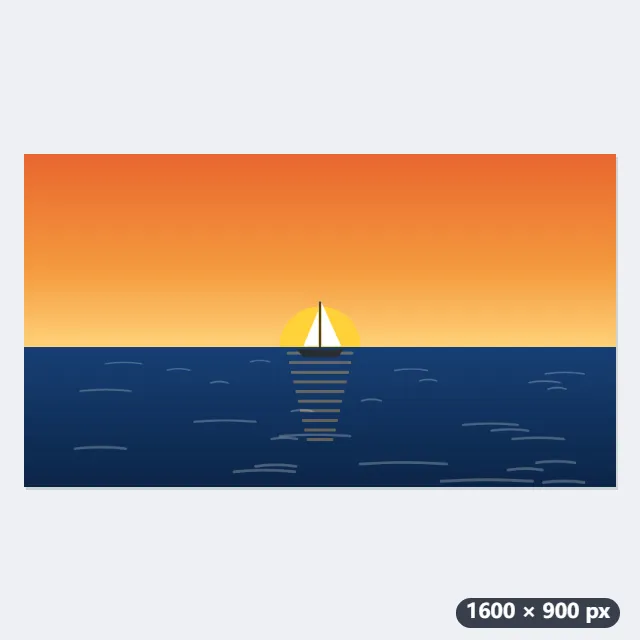
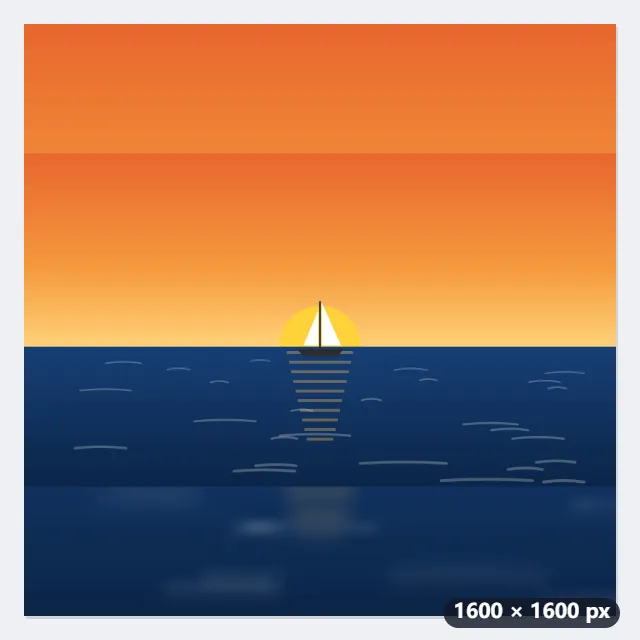
- The square takes the longer side: 1600 × 1600 px. The picture keeps its 1600 × 900 and sits in the middle, with 350 px of space above and below.
- That space is filled with a soft, enlarged copy of the same picture, so the colours carry on instead of stopping at a white edge.
- The download gets the shape in its name: sunset.jpg becomes sunset-1x1.jpg.
| Picture | Square (1:1) | Portrait 4:5 | Vertical 9:16 |
|---|---|---|---|
| 1600 × 900 | 1600 × 1600 | 1600 × 2000 | 1600 × 2844 |
| 4032 × 3024 phone photo | 4032 × 4032 | 4032 × 5040 | 4032 × 7168 |
| 3024 × 4032 portrait photo | 4032 × 4032 | 3226 × 4032 | 3024 × 5376 |
| 1920 × 1080 screenshot | 1920 × 1920 | 1920 × 2400 | 1920 × 3413 |
A 1600 × 1600 square with the whole sunset in it, the boat and the horizon where they were — so a square post shows the full picture rather than a crop of its middle.
How it works
- Drop one or more pictures onto the box.
- Choose the shape: square, 4:5 for an Instagram portrait post, 9:16 for Stories and Reels.
- Choose what fills the space: white, black, transparent, or a blurred, enlarged copy of the picture, which looks like the picture continues.
- Select Make square and download the results. Every picture keeps its full size and nothing of it is cut.
Frequently asked questions
- How is this different from cropping?
- Cropping cuts the picture to the shape and loses whatever falls outside. This keeps every pixel and adds space on the two short sides instead, so a wide group photo or a tall screenshot fits a square post in full.
- Does it lower the quality?
- The picture itself is not resized: it is placed at its own size in the middle of a larger canvas. PNG and WebP keep it exactly; JPG is saved again at high quality.
- Why did my JPG come back as a PNG?
- Because you chose a transparent background, which JPG cannot hold: the space would come out black. With white, black or blurred space the format you chose is kept.
- What size is the result?
- The longer side stays as it is and the other grows to the shape: a 4032 × 3024 photo becomes 4032 × 4032 as a square and 4032 × 5040 at 4:5. Nothing is scaled, so resize afterwards if you need a smaller file.
- How do I post a whole photo on Instagram without cropping?
- Choose Portrait 4:5 or Square for a post, or Vertical 9:16 for Stories and Reels, pick white, black or blurred space, and post the new picture. It already has the right shape, so nothing of it is cut.
- Is my picture uploaded, and what are the free limits?
- It is not uploaded: the picture is changed in your browser. The free plan allows 3 pictures of up to 20 MB per run and 5 runs a day. Pro removes these limits.