Online whiteboard
Draw, write and explain — then save it.
Page 1 / 1
Nothing leaves your device
This tool runs entirely in your browser. What you type, play or record here stays on your device: nothing is uploaded or saved on a server.
Example
Example: a maths tutor explains Pythagoras on two grid pages over a video call
An online maths tutor is helping a Year 9 pupil with Pythagoras’ theorem. She shares her screen in the video call, sets the background to Grid and presses Full screen. Page 1 explains the rule; on page 2 the pupil works through a question.
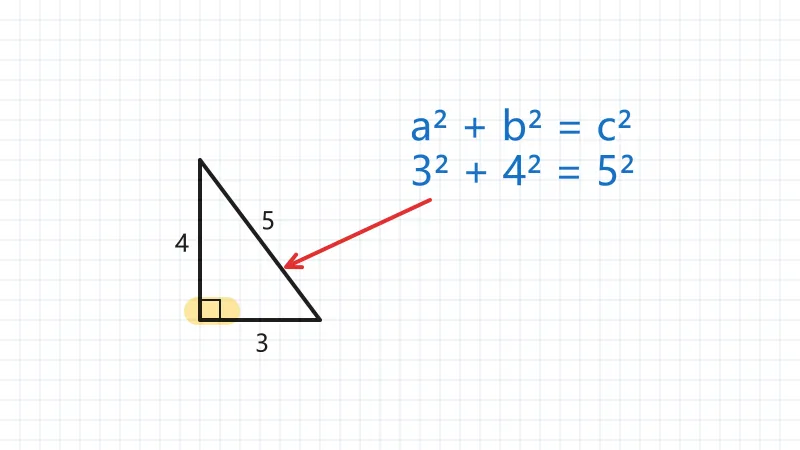
- Add page makes page 2 for the question; in full screen, Page Up and Page Down move between pages, so a presenter clicker works.
- After the lesson, Save PNG on each page: whiteboard-1.png and whiteboard-2.png, 3200 × 1800 pixels each.
| Tool | Key | Used for |
|---|---|---|
| Line | L | the right-angled triangle, along the grid |
| Text | T | the sides 3, 4 and 5 in black; a² + b² = c² and 3² + 4² = 5² in blue |
| Arrow | A | a red arrow from the formula to the longest side |
| Highlighter | H | yellow over the right angle |
| Eraser | E | rubbing out a wrong line |
Two 16:9 pictures to send to the pupil and their parents after the lesson. The pages stay in the tutor’s browser, so next week’s lesson can start where this one stopped.
How it works
- Pick a background — white, grid, dots, lined or blackboard — and a tool: pen, highlighter, line, arrow, shape or text.
- Draw with the mouse, a finger or a stylus (a stylus gets pressure); undo anything, add pages for a lesson.
- Press Full screen to teach from a projector or a shared screen, and save each page as PNG or SVG.
Frequently asked questions
- Do I need an account?
- No sign-up, no login, no download: open the page and draw. The board stays in your browser, not on a server.
- Can I use it for online teaching?
- Yes — share your screen in a video call and switch the board to full screen. Grid and lined backgrounds help with maths and handwriting; pages keep a lesson in order.
- Are there shortcuts?
- P pen, H highlighter, E eraser, L line, A arrow, R rectangle, O ellipse, T text, V select; Ctrl+Z undo and Ctrl+Y redo; in full screen, Page Up and Page Down turn pages — so a presenter clicker works.
- Can others draw on it with me?
- No — it is a board for one device. Share your screen to show it; save the pages to send them afterwards.
- What size are the saved pictures?
- A PNG is 3200 × 1800 pixels, 16:9 like a projector or a laptop screen, sharp enough to print on A4. SVG keeps every line as a line, so it stays sharp at any size. Each press saves the page you are on: whiteboard.png for a one-page board, whiteboard-1.png, -2… when there are more.
- How many pages can a board have?
- Up to 50. Add page puts a new one after the page you are on; the arrows (or Page Up and Page Down in full screen) move between them, and Clear page empties only the page you are on.
- Is my board saved?
- Yes, in this browser: every page is kept as you draw, so a refresh or closing the tab loses nothing. Save a PNG or SVG to keep a copy elsewhere. Nothing is uploaded.
Made for a specific use
Related tools
✎ Signature generator Your name, signed — typed in handwriting or drawn by hand. ▦ Grid drawing tool Copy any picture square by square. T Add text to image Captions and titles that stay readable on busy photos, placed exactly where you want them. ▧ PDF tools Printable graph paper Grids drawn as exact vector lines, so they print sharp and true to size.