Straighten an image
A degree and a half is all it usually needs.
Drop files here
or click to choose from your deviceAccepted: JPG, JPEG, PNG, WEBP, AVIF, GIF, BMP, HEIC, HEIF
Up to 3 files per runUp to 20 MB per file5 runs per dayRemove limits with Pro✓ Works offline
Your files stay on your device
This tool runs entirely in your browser. Nothing is uploaded, nothing is stored, and you can even turn off your internet connection before you start.
Example
Example: a tilted beach horizon straightened by 2.5° on a 4000 × 3000 photo
A vacation photo from a beach on Cape Cod, taken on a phone: beach.jpg, 4000 × 3000 pixels — blue sky with a few clouds, a white sailboat in the middle, sand at the bottom. The horizon drops 2.5° to the right. The corners stay on “Crop to the biggest rectangle that stays inside”.
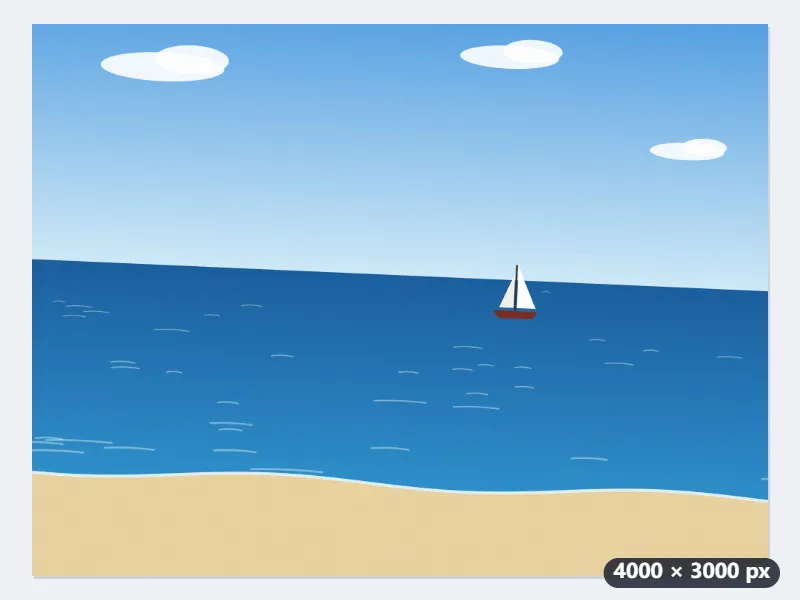
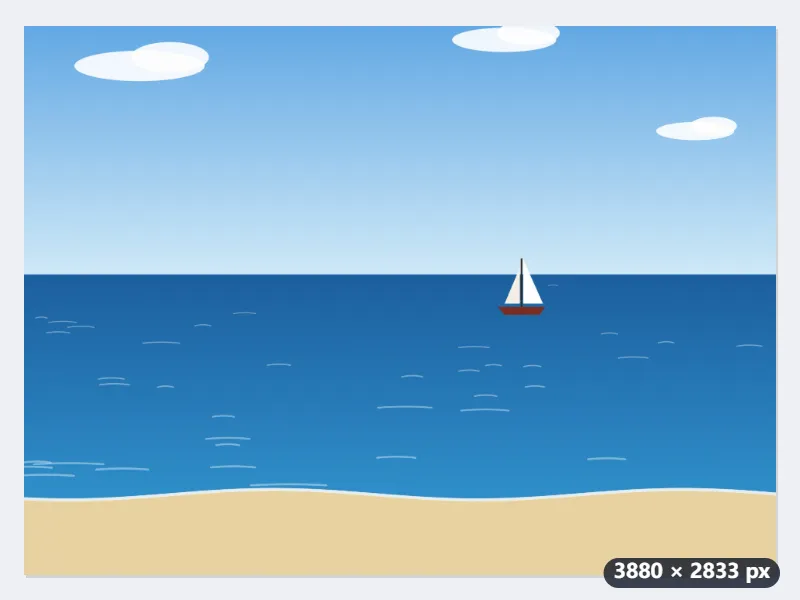
- Add the photo and set “Turn by” to −2.5: a minus turns it counterclockwise and lifts the right end of the horizon.
- The turned photo is cut to the largest rectangle that lies wholly inside it, 3880 × 2833 pixels: 8.4 % of the area goes, a strip from every edge.
- Press Straighten. The note reads “Turned −2.5°, cropped to 3880 × 2833 — the largest rectangle with no empty corners.”, and you download beach-straight.jpg.
| Turn | Crop | Area lost | Keep everything (fit) | Keep size: enlarged by |
|---|---|---|---|---|
| 0.5° | 3974 × 2965 | 1.8 % | 4027 × 3035 | 1.2 % |
| 1° | 3949 × 2931 | 3.5 % | 4052 × 3070 | 2.3 % |
| 1.5° | 3925 × 2898 | 5.2 % | 4078 × 3104 | 3.5 % |
| 2° | 3902 × 2865 | 6.8 % | 4103 × 3138 | 4.7 % |
| 2.5° | 3880 × 2833 | 8.4 % | 4128 × 3172 | 5.9 % |
| 3° | 3858 × 2801 | 9.9 % | 4152 × 3206 | 7.1 % |
| 5° | 3780 × 2680 | 15.6 % | 4247 × 3338 | 11.9 % |
A 3880 × 2833 JPG with a level horizon and no empty corners. If a photo book or frame layout needs exactly 4000 × 3000, choose “Keep the original size, crop the overhang”: the photo is enlarged by 5.9 % until the corners are covered.
How it works
- Add the photo or the scan.
- Nudge the angle until the horizon, the wall or the edge of the page looks level.
- Leave it on crop and the result has no empty corners — it is cut down to the largest rectangle that fits inside the turned picture.
- Download. Nothing is uploaded at any point.
Frequently asked questions
- How much of the picture do I lose?
- Less than it looks like you should. Three degrees off a 4:3 photograph costs about a tenth of the area; one degree costs a few per cent. The crop is the mathematically largest rectangle that fits inside the turned frame, so it is the least you can lose while keeping straight edges.
- What is the difference between crop, fit and fill?
- Crop cuts in so there are no empty corners. Fit keeps every pixel and pads the corners with a colour, which is right for a scan you are going to crop yourself. Fill keeps the original dimensions exactly and lets the corners run off the edge, which is right when something downstream expects that size.
- Does straightening hurt the quality?
- Slightly and unavoidably — the pixels have to be resampled onto a new grid, so fine detail softens a little. Doing it once is fine. Straightening an already-straightened JPEG repeatedly is what visibly degrades it.
- Can it find the angle for me?
- No — you set it. Automatic detection works well on photographs with an obvious horizon and badly on everything else, and a scan silently rotated by the wrong 0.4 degrees is worse than one you nudged yourself while watching.
- Can I use a photo straight from my iPhone (HEIC)?
- Yes. Browsers cannot read HEIC on their own, so a small WebAssembly decoder loads the first time you bring one; after that it works offline like everything else here, and the photo still never leaves your device. The result is saved as JPG, because HEIC is not a format a browser can write.
- Do I type a plus or a minus angle?
- A minus turns the picture counterclockwise, which lifts its right side; a plus turns it clockwise and lifts the left side. So a horizon that drops to the right needs a minus, such as −2.5, and one that drops to the left a plus. If it gets worse, flip the sign.
- Are my files uploaded?
- No. Everything happens in your browser — the files never leave your computer.