Straighten a photo taken at an angle
Drag the four corners onto the page; it comes back square, as though photographed head on.
Drop files here
or click to choose from your deviceAccepted: JPG, JPEG, PNG, WEBP, AVIF, GIF, BMP, HEIC, HEIF
One file per runUp to 20 MB per file5 runs per dayRemove limits with Pro✓ Works offline
Your files stay on your device
This tool runs entirely in your browser. Nothing is uploaded, nothing is stored, and you can even turn off your internet connection before you start.
Example
Example: a Letter-size flyer on a bulletin board, photographed from the left
A school flyer on US Letter paper is pinned to a hallway board, and the only place to stand was off to its left. The phone photo, flyer.jpg, is 4032 × 3024 pixels; in it the flyer’s near left edge is 2500 pixels tall and its far right edge only 1800.
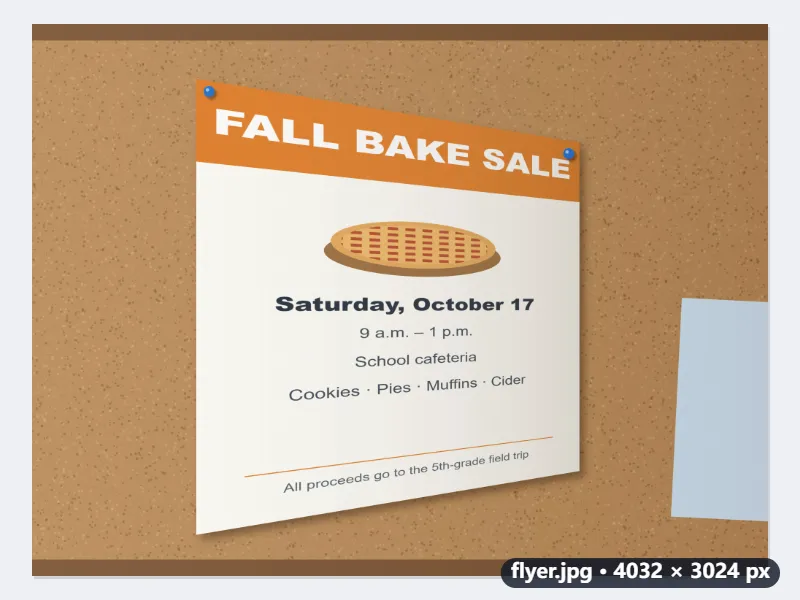
- Drag the handles onto the flyer’s corners: top left (900, 300), top right (3000, 650), bottom right (3000, 2450), bottom left (900, 2800).
- With “From the corners I marked”, each side is the average of the two opposite edges: 2129 × 2150 pixels, nearly square, because a page seen at an angle looks shorter than it is.
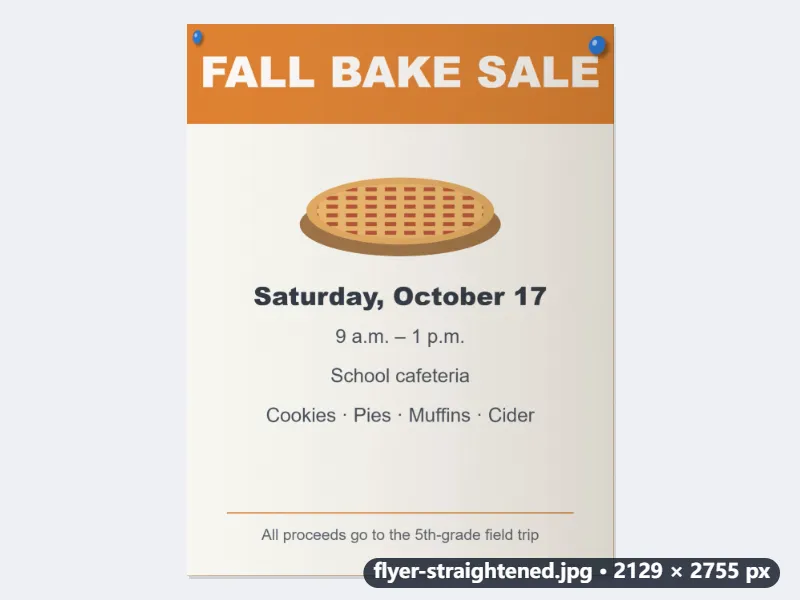
- With “Letter page” the width is kept and the height follows 8.5 : 11, giving 2129 × 2755 pixels.
- Press Straighten: flyer-straightened.jpg downloads, still a JPG because the format is kept.
| Shape of the result | Straightened picture |
|---|---|
| From the corners I marked | 2129 × 2150 px |
| Letter page | 2129 × 2755 px |
| A4 page | 2129 × 3011 px |
| Square | 2150 × 2150 px |
| 4 : 3 | 2867 × 2150 px |
The flyer comes back as a flat, Letter-shaped page with straight edges and level lines of text, ready to print at 8.5 × 11 in or to send on. The right-hand side, farthest from the camera, is stretched the most, so its small print comes out a little softer.
How it works
- Drop the photo. Four handles appear near the edges.
- Drag each handle onto a corner of the page, screen or poster. Arrow keys nudge the last handle you touched.
- Choose the shape of the result: from the corners, or a paper size if you know it.
- Press Straighten and download the picture.
Frequently asked questions
- How is this different from straightening a scan?
- The scan cleaner turns a picture that is merely tilted. A photo taken from the side is not tilted but slanted — the far edge is shorter than the near one — and no amount of turning fixes that. This maps the four corners onto a rectangle, which does.
- Why choose Letter (or A4) when the photo is of a page?
- A photograph cannot tell how long a page is when it is seen at an angle, so the proportions guessed from the corners usually come out squat. Telling it the paper gives back the right shape exactly: Letter for an 8.5 × 11 in sheet, A4 for an A4 one.
- Does it sharpen or whiten the page?
- No — only the geometry changes. For a white page and black text, run the result through the scan cleaner afterwards.
- How big is the straightened picture?
- Each side is the average of the two opposite edges you marked, so the page comes back at about the resolution it was photographed at, at most 6000 pixels a side. With a paper shape chosen, one side is kept and the other is lengthened to the ratio, so nothing is scaled down.
- Can I straighten a whiteboard or a screen?
- Yes. A whiteboard has no standard shape, so leave “From the corners I marked”, or choose 4 : 3 or 16 : 9 if you know its proportions, as you usually do for a screen or a projected slide.
- Is the photo uploaded?
- No. It is straightened in your browser.