Remove shadows from a document photo
White paper again, the writing untouched.
Drop files here
or click to choose from your deviceAccepted: JPG, JPEG, PNG, WEBP, AVIF, GIF, BMP, HEIC, HEIF
Up to 3 files per runUp to 20 MB per file5 runs per dayRemove limits with Pro✓ Works offline
Your files stay on your device
This tool runs entirely in your browser. Nothing is uploaded, nothing is stored, and you can even turn off your internet connection before you start.
Example
Example: a worksheet photo with a hand’s shadow over the lower left
worksheet.jpg, 1200 × 1600 pixels: warm white paper with rows of black text, one line marked with yellow highlighter, a red ring stamp at the lower right. The light is brighter at the top right, and a soft hand shadow leaves the lower left at less than half the paper’s brightness. Settings: Keep colours, whiteness 5.
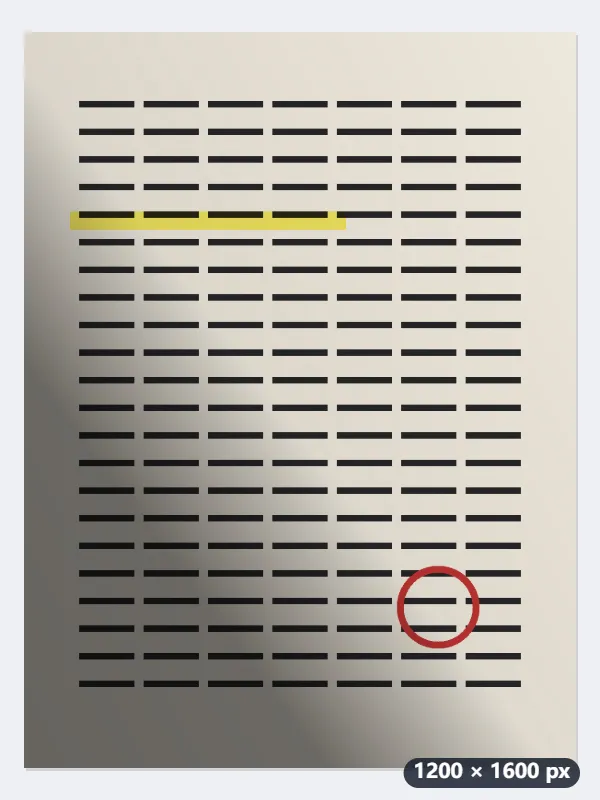
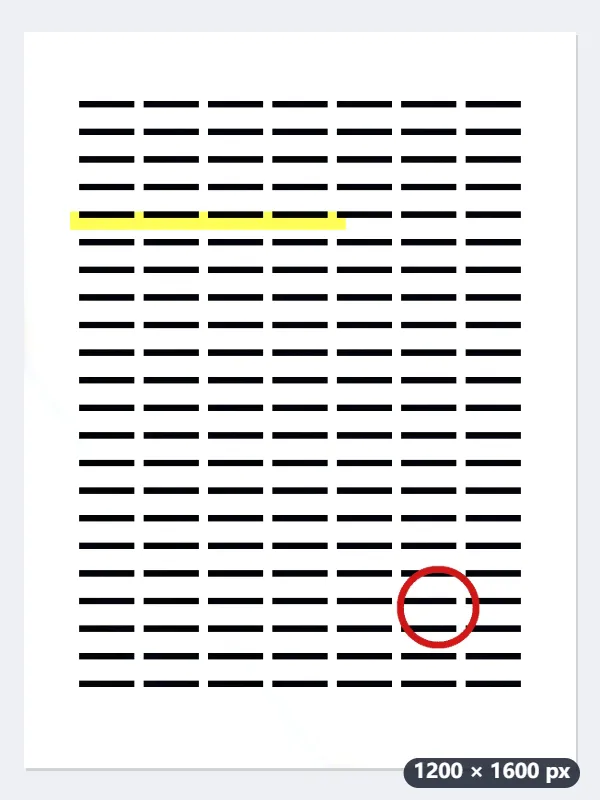
- The paper’s colour is estimated across the page and every pixel is divided by the paper under it: paper in the shadow, 103 out of 255, comes out as white as paper in the light.
- Ink keeps its darkness relative to the paper, so text under the shadow (17) and text in the light (37) both end up near black.
- A stretch then sends the paper’s grain to white: at whiteness 5 everything above 237 turns pure white, at 1 above 251, at 10 above 219.
| Point on the page | Photo (RGB) | Keep colours | Greyscale | Black and white |
|---|---|---|---|---|
| Paper in the light | 236, 230, 218 | 255, 255, 255 | 255 | white |
| Paper in the shadow | 103, 101, 95 | 255, 255, 255 | 255 | white |
| Text in the light | 37, 36, 39 | 1, 1, 9 | 3 | black |
| Text in the shadow | 17, 16, 17 | 5, 4, 9 | 5 | black |
| Yellow highlighter | 226, 213, 88 | 255, 255, 86 | 247 | white |
| Red stamp | 179, 48, 45 | 209, 21, 21 | 77 | black |
worksheet-no-shadow.jpg, still 1200 × 1600: white paper all over, black text, the yellow and the red kept. In greyscale the highlighter fades to almost white (247) and in black and white it is gone, so keep colours when the marks matter.
How it works
- Drop the photos of your pages — a worksheet, a receipt, a letter, notes.
- Choose the finish: colour keeps stamps and highlighter, black and white is best for printing.
- Press Remove shadows and download; raise the whiteness if a faint grey is left.
Frequently asked questions
- How does it work?
- It works out how bright the paper is at every point of the photo — darker under the shadow, brighter near the window — and evens it out, so the whole page is white and the ink keeps its colour.
- Will it straighten the page too?
- No, it only fixes the light. To straighten a crooked page or crop it to the paper, use the scan straightener; for a page photographed at an angle, use perspective correction.
- Does it work on a photo that is not a document?
- It is made for paper: on a photo of people or a room it flattens the light and the result looks washed out.
- Part of my page is still grey. What now?
- Raise How white the paper gets: at 10 everything above 219 out of 255 turns white. A shadow with a hard edge, such as a phone held under a ceiling lamp, is lifted too. Only a very dark one, where the paper keeps less than about 40% of its brightness, can stay grey; then take the photo again with more light.
- Will highlighter and stamps survive?
- With Keep colours, yes: yellow highlighter stays yellow and a red stamp stays red. In Greyscale the highlighter turns almost white, and in Black and white it disappears while the stamp turns black.
- Is anything uploaded?
- No. Everything runs in your browser, so receipts and letters stay on your device. The free plan handles 3 images per run, 20 MB each and 5 runs a day.