Remove objects from a photo
Paint over it and press Erase: wires, date stamps and small things disappear, without the photo leaving your device.
Drop files here
or click to choose from your deviceAccepted: JPG, JPEG, PNG, WEBP, AVIF, GIF, BMP, HEIC, HEIF
One file per runUp to 20 MB per file5 runs per dayRemove limits with Pro✓ Works offline
Your files stay on your device
This tool runs entirely in your browser. Nothing is uploaded, nothing is stored, and you can even turn off your internet connection before you start.
Example
Example: removing a telephone wire and its pole from a lighthouse photo
A holiday photo, lighthouse.jpg, 4032 × 3024 pixels: a white lighthouse with a red top on a green headland under a clear blue sky, and a thin black wire sagging across the sky from the left edge to a brown wooden pole standing on the grass. Output format: Keep original format (JPG).
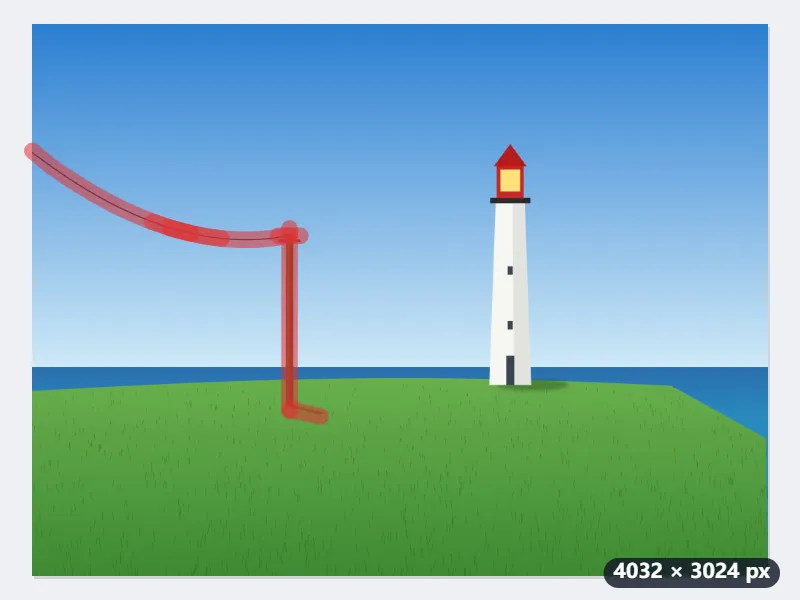
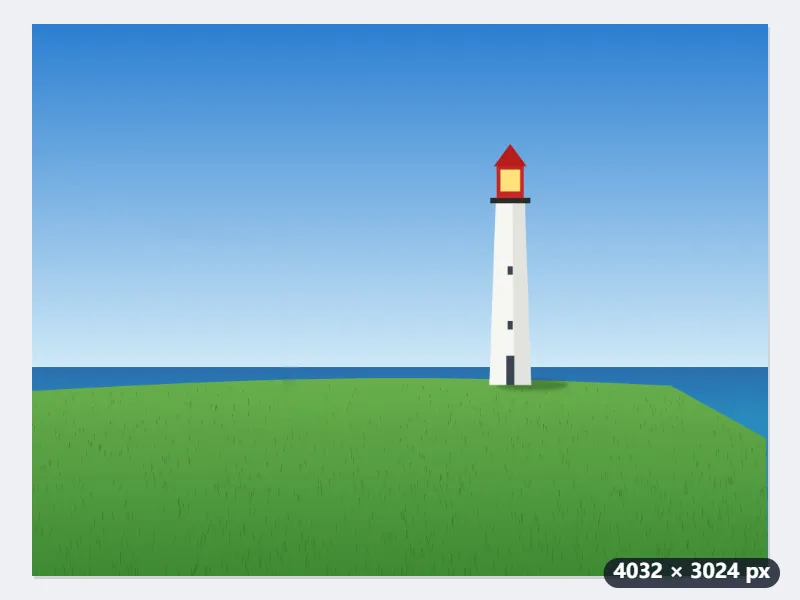
- Add the photo. The first Erase downloads the model, about 14 MB, once.
- Paint over the wire with a little margin and press Erase. A wire across half the sky is best done in two or three pieces, one Erase each, so the model sees each piece up close.
- Paint over the pole, its shadow on the grass included, and press Erase again: each press works on the result of the one before.
- Hold Compare to see the original; Undo takes a step back if a piece left a smear.
lighthouse-erased.jpg, still 4032 × 3024: sky where the wire was and grass where the pole stood. Only the painted areas and a few pixels round them were repainted; the rest is the photo as it was, saved again as JPG.
How it works
- Add a photo. The first erase downloads the model (about 14 MB) once; after that it starts immediately.
- Paint over what should go, covering all of it and a little of what is around it, then press Erase.
- Look at the result — hold Compare to see the original. Paint over anything left and erase again; Undo takes a step back.
- When it looks right, select Save photo.
Frequently asked questions
- What does it remove well?
- Things with simple surroundings: power lines and wires against the sky, a date stamp printed by an old camera, text or a watermark over a plain area, a pole, a sign, litter, a manhole cover, spots and blemishes. The model paints in what it can see around the gap, so sky, walls, water, sand, grass and pavement come back convincingly.
- Can it remove people from a travel photo?
- Only when the background behind them is simple — a person alone on a beach or against a plain wall. In front of a building, a crowd or a detailed scene it leaves smears and shapes that were never there; we tested it and would rather say so here. That needs far larger models than can run in a web page.
- It left a trace of the object. What now?
- Paint over the trace and press Erase again. Leftovers are nearly always a sliver of the object that the brush did not cover — its edge, its shadow — which the model then continues. Cover the whole thing, shadow included, with a little margin, and erase large things in a few smaller steps.
- Why did a long wire come out blurred?
- Because the model works on a square around everything painted in one go, scaled to 512 pixels. A wire painted from one side of a 4000-pixel photo to the other makes one huge square, shrunk about eight times, and the repainted sky comes out soft. Erase it in pieces of a few hundred pixels, pressing Erase after each, and every piece is repainted at full detail.
- What file do I get?
- The same photo at the same size, with -erased added to its name (lighthouse.jpg becomes lighthouse-erased.jpg), in its own format unless you choose JPG, PNG or WebP. Choose PNG if no pixel outside the painted areas may change at all.
- Is my photo uploaded?
- No. The model (MI-GAN, from Picsart AI Research, MIT licence) runs in this page on your own device, and the photo never leaves it. Once the model has downloaded, the tool works offline.
- Does it lower the resolution?
- No. The photo keeps its full size, and the model repaints only the areas you painted and a two-pixel edge around them. Saved as PNG, every other pixel is exactly as it was; saved as JPG, the photo is compressed again, as it would be by any editor. The model works on a square around each area, so a 12-megapixel photo takes about as long as a small one: a second or two per erase on a computer.